

Test management

Test cases that live beside their results

Write, review and plan software test cases in the same place as your automated test results. Turn tests from your runs into managed test cases. Library health shows which cases are automated, out of date or waiting for review.

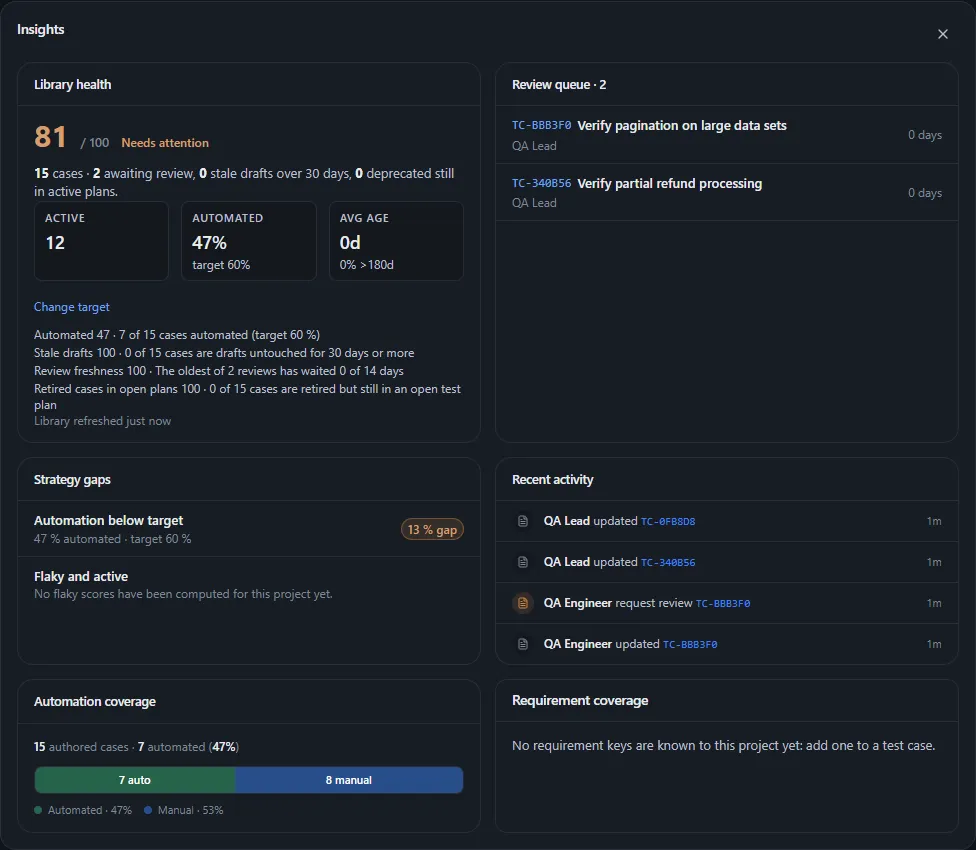
Test library insights: library health 81 of 100 (needs attention), automation at 47 percent against a 60 percent target, a review queue of two cases keyed TC-BBB3F0 and TC-340B56, four recent edit and review-request events, and a 7 automated, 8 manual coverage bar.
Sample data Test library health and automation coverage
  • Versioned casesEvery save keeps a version that you can compare with the current case and restore.
  • Owners by ruleSuite owners, ownership rules and your CODEOWNERS file, GitHub's list of who owns which code, send each new failure to a person.
  • Drafts wait for reviewGenerated cases cite their sources and stay drafts until a reviewer accepts them.

One catalog for written and automated tests

Test cases your team writes, tests TestLookup sees in your results, and each run's results are separate records. TestLookup links them instead of merging them.

Catalog

Cases, suites, plans and approvals

Under Test cases, write cases with steps and expected results, group them into suites, and plan them for a release. Export plans and test strategies to Word or PDF. Cases waiting for review collect on the Approvals tab.

  • Each plan result records which version of the case it ran against
  • Import from CSV or Excel (XLSX), up to 2,000 rows. An export imports back unchanged
  • Change up to 200 cases at once, and each change is versioned and logged
  • Mentioning a project member with @ in a comment notifies them inside TestLookup only
Import cases from CSVtext · Test cases import template
Title,Priority,Suite,Steps,Expected Result,Automated
Pay with a saved card,P1,checkout-e2e,"Step 1: open the basket; Step 2: pay",Order is confirmed,No

Save this as a .csv file, then choose Import, next to Export on Test cases. Every row becomes a draft. TestLookup checks the file first and saves nothing until you confirm.
Promotion

Promote what your automation already runs

Tests that appear in your results show up as observed tests. Promoting one links it to the written case with the same fingerprint, an ID TestLookup works out to recognize the same test in every run. If there's no match, it creates a draft, and if several cases match, it flags a conflict for you to resolve.

  • Tests whose automation disappears go to an orphan queue
  • A QA lead confirms retiring a case, with a reason, and nothing is permanently deleted
  • Each case's timeline shows its versions, reviews, runs and defects together

Keep the library healthy and reviewed

A health score shows what needs attention next, and TestLookup enforces each stage of a case's life.

Library health

Health against your automation target

Library health gives each project's written test cases a score. It looks at how many are automated, drafts unchanged for 30 days, how recently cases were reviewed, and retired cases still in open plans. Automation is measured against a target a QA lead sets, 60% by default.

  • A project with no written cases shows "not measured" in place of a score
  • Lists active cases that are flaky, meaning they pass and fail at random, and cases with no owner
  • Quick views of your drafts, cases not yet automated, and drafts written by AI
  • Add requirement IDs to cases, if you like, to see which requirements no case checks

Lifecycle

A lifecycle with real review

Cases move from draft to active, then to deprecated or archived. Each project can require a review before a case becomes active, and this is off by default. TestLookup offers only the moves your role allows, and editing a case never changes its status.

  • Only the reviewer who claimed a case can decide on it
  • A QA engineer can't approve their own case
  • Deprecating, reinstating and archiving need a QA lead and a reason
  • Restore saves an older version as a new one

Route every failure to an owner

Ownership turns a failed run into work with a person's name on it, waiting in their inbox.

Ownership

Ownership rules and automatic assignment

Set an owner for each suite, then match tests to teams by suite, class, package, file path or feature label. You can also import your CODEOWNERS file as path rules. When a run finishes, each failure with no owner goes to the suite owner, a rule's owner or a QA lead, and appears in their Inbox ready to look at.

  • A failure someone reassigned by hand keeps its new owner
  • If assignment fails, the run is still saved
  • Each project has a built-in default QA lead, so every failure has somewhere to go
  • Team names on rules also send each team's alerts to its own channel
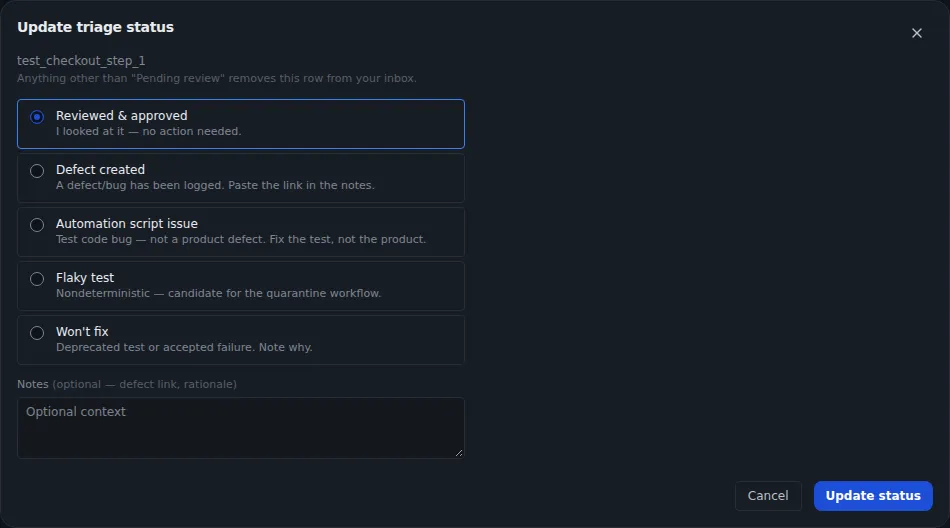
Update triage status dialog for a failing test with options: reviewed and approved, defect created, automation script issue, flaky test, and won't fix.
Sample data Triage a failure in one step

Draft test cases from your own documents

TestLookup can draft test cases from your own requirements and documents. A person decides which drafts join the catalog.

Knowledge

Drafts that cite your documents

Add Jira issues, Confluence pages, web addresses or uploaded documents as a project's knowledge sources. TestLookup finds the relevant passages and drafts test cases from them, and each draft cites up to five passages. Every draft waits for a reviewer to accept or reject it.

  • Turn on Enable Knowledge RAG in Settings › AI. It also needs an AI model it can reach, a local one while offline
  • If evidence or a model is missing, generation stops and says so instead of making empty cases
  • When a source changes, TestLookup marks the cases drafted from it as out of date for another review
  • An optional check blocks accepting drafts that score below 0.70 on how closely they follow their sources

Keep your test cases next to their results

Run TestLookup on your own computer with sample projects. Then import your own test cases from CSV or Excel.