
Collaboration · Ownership · Test history

Every failure has an owner

Decide who owns each automated test with ownership rules or your CODEOWNERS file, GitHub's list of who owns which code. When a test run finishes, every failure without an owner goes to someone's Inbox. Every test keeps its history run by run, and decisions wait for a person in one Approvals queue.

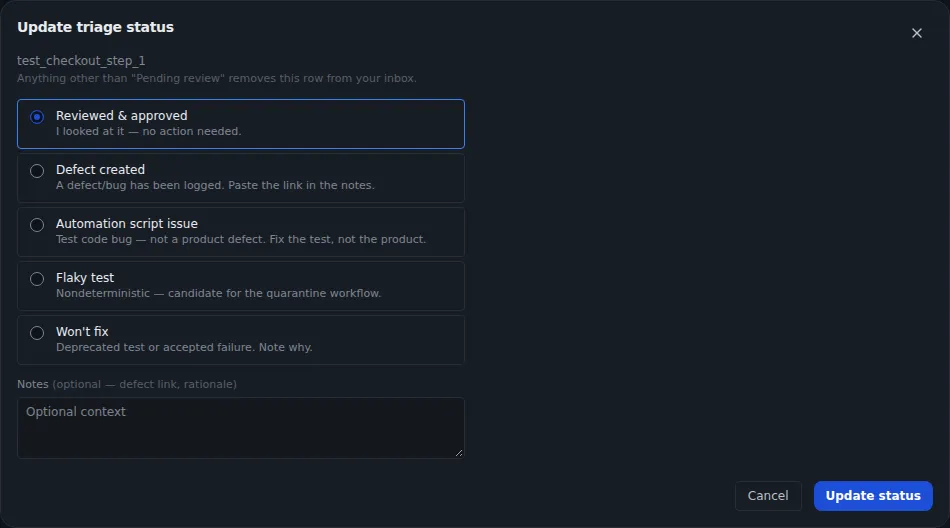
Update triage status dialog for a failing test with options: reviewed and approved, defect created, automation script issue, flaky test, and won't fix.
Sample data Triage a failure in one step
  • Owners from your codeRules match tests by suite, class, package, path or feature label, and can import your CODEOWNERS file.
  • Reassignments stickA failure you reassign by hand stays with its new owner after later runs.
  • Up to 50 runs per testThe History tab shows each run's status, duration and AI verdict, and how often the test flips between pass and fail.

Ownership rules that match your code

Tell TestLookup once who owns which tests, with rules or your CODEOWNERS file. New failures then follow those rules.

Ownership rules

Match tests by suite, path or label

On the Ownership page, a QA lead adds rules that link tests to a service and a team. Each rule matches a suite name, class, package, full path or feature label with a wildcard pattern, and rules with a higher priority are tried first. Import CODEOWNERS turns your file into path rules and replaces the rules you imported last time.

  • Paste the file in to import it with no network access
  • Fetching it from GitHub needs offline mode off and the GitHub checks feature turned on, which is off by default
  • Turn a rule off without deleting it
  • Team names on rules also decide where team alerts go
Coverage

See how many failures your rules own

Error traces from Java, Kotlin, Groovy or Scala name a class instead of a file path. List up to 20 Java source folders so path rules can match those failures, and test the list on the last 30 days of failures before you save it. The Coverage badge shows what share of recent failures a path rule matches.

  • Lines from the JDK, JUnit, TestNG or Spring libraries are skipped
  • Coverage looks back 30 days by default
  • The Inbox tells you when a CODEOWNERS or path rule assigned a failure to you

Failures reach the right person on their own

When a run finishes, every failed or broken result that nobody owns yet gets an assignee. TestLookup stops at the first match.

Auto-assignment

Suite owner first, an administrator last

TestLookup tries these in order: the suite's owner, the owner from a path or CODEOWNERS rule, one of the project's QA leads, the project's manager, and then an administrator. It picks QA leads and administrators with a fixed formula, so the work spreads evenly. Every project starts with a built-in QA-lead account, so a failure always has somewhere to go.

  • A suite with no owner falls back to that built-in account
  • Until you set suite owners and rules, many failures end up on that account
  • A failure you reassigned by hand is never taken back
  • If assignment fails, the run is still saved
  • Assignment sends no message. The Inbox badge counts what's waiting for you

A failure inbox for each person

Triage means looking at a failure and deciding what to do with it. Each person works from their own list of failures, and QA leads see the whole team's.

Inbox

Record what you found in one step

Assigned to me lists the failed and broken tests waiting for you. Each one shows the error, the failing step and, when a rule matched, why it's yours. Update status records what you found and clears the row.

  • QA leads and administrators start on the team view, with every unresolved failure in the project, and can reassign
  • Outcomes: approved, defect created, automation script issue, flaky test, or won't fix
  • Reassign moves a failure only to the suite owner or a QA engineer
  • Show the last 24 hours, 7, 14 or 30 days. The list refreshes every 30 seconds

Team channels

Alerts go to the owning team

Off by defaultTurn offline mode off to deliver to Slack, Teams or an outside mail server.

Teams are the names on your ownership rules, so there's no separate list to keep. Give each team a Slack or Microsoft Teams webhook, or an email address, and a failing test's alerts go to its team. Alerts for a group of similar failures go to the team that owns more than half of its tests.

  • Each person's own notification settings apply when there's no channel or owner, or when ownership is mixed
  • If a delivery fails, personal settings apply too
  • QA leads set channels, one project at a time

Every test keeps its history

Follow one test across runs, whether your CI system reported it or your team wrote it.

Test history

Run by run, for every test

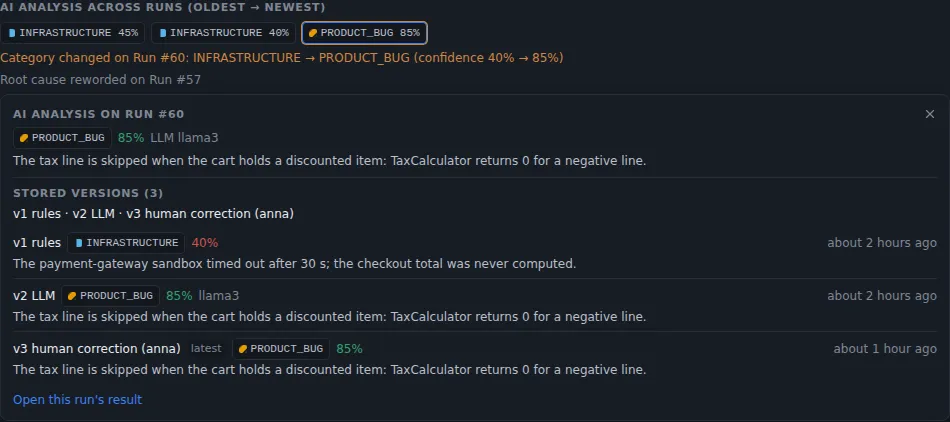
A test result's History tab shows the test's last 50 runs and its flakiness over 30 days, a measure of how often it flips between pass and fail. It also shows its median and slow-run times (p50 and p95) next to its usual time. A strip of AI results marks where the analysis changed its verdict from one run to the next.

  • Details show the suite, the owner, and when the test was first and last seen
  • Step flakiness across runs shows which step keeps flipping between pass and fail
  • Renaming a test starts a new history under the new name
AI analysis across runs: stored versions from the rules engine, a language model and a human correction, with the category changing from infrastructure to product bug.
Sample data Each analysis is kept as a version, including human corrections

Observed tests

One page per observed test

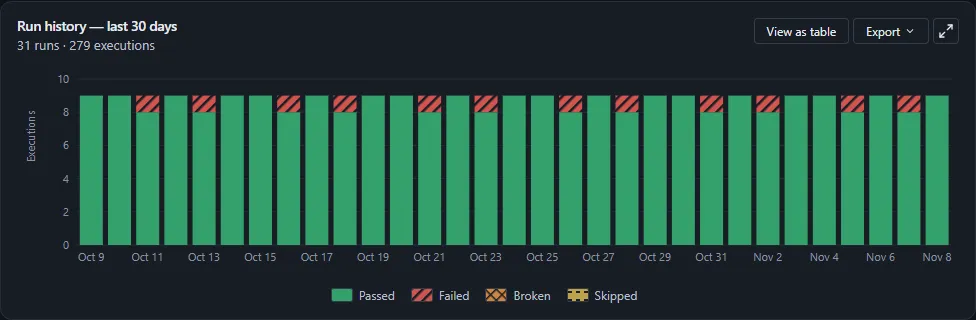
Every test your runs report becomes an observed test. TestLookup follows it across runs with a fingerprint, an ID it works out to recognize the same test each time. Its page shows a history timeline and run history, and a suite's Charts tab draws run history for the whole suite.

  • Promote turns an observed test into an authored test case, one your team keeps in TestLookup. It needs the QA engineer role or above
  • If a test is linked to the wrong authored case, Unlink managed case removes the link with a reason. Neither record is deleted
  • A test that stops being reported keeps its history
Run history chart for the E2E Suite over the last 30 days: one stacked column per day from 9 October to 8 November, 31 runs and 279 executions, mostly passed with one failed test on 12 of the days.
Sample data Suite run history

Authored test cases

A versioned timeline you can restore

Every save of an authored test case keeps a version, marked when AI generation or an API key wrote it. The Timeline tab lists versions, review requests and decisions, comments, test plan runs, runs of its automated test, defects and requirement links. Restore this version saves an old version as a new one, so nothing leaves the history.

  • Compare any version with the current case
  • Restoring keeps the case's status and owner
  • Editing and restoring need the Tester role or above
Read a case's versions with the command-line toolbash · TestLookup CLI
testlookup cases history TC-1A2B3C --project "Checkout Service"

Pass the case ID, or the short TC- ID shown in the app. A short ID also needs --project.

Work together on decisions

Decisions that need a person wait in one queue, and discussion stays next to the test case it's about.

Approvals

One queue for every decision

Inbox › Approvals collects everything in one project that's waiting for a person. Everyone sees AI reports, test-case reviews and proposals to set a flaky test aside (quarantine). QA leads and administrators also see defect promotions and agent actions.

  • A filter shows one kind of decision at a time
  • Nobody approves their own test case, unless a QA lead or administrator gives a reason
  • The person who asked for an investigation can't approve the actions it proposes
  • An API key can't review an AI report
  • Agent actions appear once an AI agent runs in Suggest or Act mode

Comments

Discuss a test case where it lives

Anyone with the Tester role or above can comment on an authored test case. Type @ to mention a project member, who gets a notification inside TestLookup that opens the case. Mentions send no email, and every comment also appears in the project's activity log.

  • In Inbox › Activity, choose Involving me to see comments that mention you
  • A name that isn't a project member stays plain text
  • Notes on your trend charts

    QA engineers and above can add a note to a day or a range of days, such as a release freeze or an outage. The pass-rate trend on Trends and the Coverage history chart show every note in view, so you see each dip with its reason.

  • A named owner for each release

    A release created in the app belongs to whoever created it, and you can change the owner in Edit. A release created by an upload, an API key or a sync has no owner until someone sets one. Each change appears in the activity feed.

Try the failure walkthrough

Look at a sample failure, its evidence and a correction by a person, in your browser with made-up data. Or run TestLookup on your own computer and watch failures reach their owners.